Markdown Features
Frontmatter

Frontmatter

Add metadata to your markdown documents using YAML or TOML frontmatter.

What is Frontmatter?

Frontmatter is metadata placed at the beginning of a markdown document. It's commonly used to store document properties like title, author, date, tags, and custom fields.

YAML Frontmatter

The most common frontmatter format uses YAML syntax, delimited by triple dashes ---:

---
title: My Document
author: John Doe
date: 2024-01-15
tags: [markdown, documentation, tutorial]
---
 
# Document Content
 
Your markdown content starts here...

Basic YAML Syntax

Strings

---
title: My Document
description: This is a description
---

Numbers

---
version: 1.0
count: 42
price: 19.99
---

Booleans

---
published: true
draft: false
featured: true
---

Lists

---
tags:
  - markdown
  - tutorial
  - documentation
 
# Alternative syntax
authors: [John Doe, Jane Smith]
---

Objects

---
author:
  name: John Doe
  email: john@example.com
  website: https://example.com
---

Dates

---
created: 2024-01-15
updated: 2024-01-20T10:30:00Z
---

Common Use Cases

Blog Posts

---
title: Getting Started with MD Editor
author: Jane Smith
date: 2024-01-15
categories: [tutorials, markdown]
tags: [beginner, guide, editor]
excerpt: Learn how to use MD Editor for your markdown needs
featured: true
image: /images/hero.jpg
---

Documentation

---
title: API Reference
version: 1.0.0
category: reference
sidebar_position: 3
last_updated: 2024-01-15
contributors:
  - John Doe
  - Jane Smith
---

Academic Papers

---
title: A Study of Markdown Editors
authors:
  - name: Dr. John Doe
    affiliation: University Example
  - name: Dr. Jane Smith
    affiliation: Institute Example
abstract: This paper examines modern markdown editors...
keywords: [markdown, editors, comparison]
date: 2024-01-15
---

Project Notes

---
project: Website Redesign
status: in-progress
priority: high
assignee: john@example.com
due_date: 2024-02-01
labels: [design, frontend]
---

TOML Frontmatter

MD Editor also supports TOML format, delimited by triple plus signs +++:

+++
title = "My Document"
author = "John Doe"
date = 2024-01-15
tags = ["markdown", "documentation"]
+++
 
# Document Content
 
Your markdown content starts here...

TOML Syntax Examples

+++
# Basic types
title = "My Document"
count = 42
published = true
 
# Arrays
tags = ["tag1", "tag2", "tag3"]
 
# Tables (objects)
[author]
name = "John Doe"
email = "john@example.com"
 
# Array of tables
[[contributors]]
name = "Jane Smith"
role = "Editor"
 
[[contributors]]
name = "Bob Johnson"
role = "Reviewer"
+++

Frontmatter Preservation

MD Editor preserves frontmatter when:

  • Transforming markdown
  • Converting between formats
  • Processing with tools
  • Exporting documents

Accessing Frontmatter

While editing in MD Editor, frontmatter:

  • Is preserved in the document
  • Can be edited like regular text
  • Is included in exports
  • Doesn't appear in the preview (implementation dependent)

Multi-line Values

YAML Multi-line Strings

---
# Literal block (preserves line breaks)
description: |
  This is a multi-line
  description that preserves
  line breaks.
 
# Folded block (single line)
summary: >
  This is a multi-line
  string that will be
  folded into a single line.
---

TOML Multi-line Strings

+++
# Multi-line string
description = """
This is a multi-line
description in TOML.
"""
+++

Nested Structures

Complex YAML Example

---
title: Complex Document
metadata:
  author:
    name: John Doe
    contact:
      email: john@example.com
      phone: "+1234567890"
  publication:
    date: 2024-01-15
    version: 1.0.0
  tags:
    - category: technology
      subcategory: markdown
    - category: tutorials
      subcategory: beginner
---

Special Characters

Quotes in YAML

---
# Use quotes for strings with special characters
title: "Title with: colons"
description: 'Single quotes work too'
quote: "He said, \"Hello!\""
---

Escaping in TOML

+++
title = "Title with \"quotes\""
path = "C:\\Users\\Documents"
+++

Comments

YAML Comments

---
title: My Document
# This is a comment
author: John Doe  # Inline comment
# Another comment
date: 2024-01-15
---

TOML Comments

+++
title = "My Document"
# This is a comment
author = "John Doe"  # Inline comment
+++

Validation

MD Editor's frontmatter support includes:

  • Syntax validation
  • Error highlighting
  • Auto-fixing common issues
  • Format detection (YAML vs TOML)

Best Practices

  1. Be consistent - Use the same format across your documents
  2. Use meaningful keys - Choose clear, descriptive field names
  3. Keep it simple - Avoid overly complex nested structures
  4. Document your schema - Define what fields mean in your project
  5. Use appropriate types - Booleans for flags, numbers for counts, etc.

Common Frontmatter Fields

General

  • title - Document title
  • description - Brief description
  • author - Author name or object
  • date - Creation or publication date
  • tags - List of tags
  • categories - List of categories

Publishing

  • published - Boolean publish status
  • draft - Boolean draft status
  • featured - Boolean featured status
  • slug - URL slug
  • permalink - Permanent link

Organization

  • order - Sort order
  • weight - Priority weight
  • sidebar_position - Position in sidebar
  • menu - Menu configuration

SEO

  • title - SEO title (may differ from display title)
  • description - Meta description
  • keywords - SEO keywords
  • image - Social media image
  • canonical - Canonical URL

Examples for Different Purposes

Simple Note

---
title: Quick Note
date: 2024-01-15
---

Technical Documentation

---
title: Installation Guide
category: Getting Started
difficulty: beginner
time_to_complete: 15 minutes
prerequisites:
  - Node.js 18+
  - npm or yarn
last_reviewed: 2024-01-15
---

Meeting Notes

---
title: Team Meeting
date: 2024-01-15
attendees:
  - John Doe
  - Jane Smith
  - Bob Johnson
topics:
  - Project updates
  - Sprint planning
  - Technical discussion
action_items: []
---

Troubleshooting

Invalid YAML

If your YAML frontmatter fails to parse:

  • Check indentation (use spaces, not tabs)
  • Ensure quotes are balanced
  • Verify colons have spaces after them
  • Check for special characters

Invalid TOML

If your TOML frontmatter fails:

  • Check for unescaped quotes
  • Verify array syntax
  • Ensure equal signs for assignments
  • Check table definitions

Integration with Tools

MD Editor's tools that work with frontmatter:

  • Preserve frontmatter during conversions
  • Extract metadata for processing
  • Validate frontmatter syntax
  • Generate frontmatter templates

Empty Frontmatter

You can include empty frontmatter as a placeholder:

---
---

This is valid and will be preserved during document processing.

Visual Frontmatter Editor in MD Editor

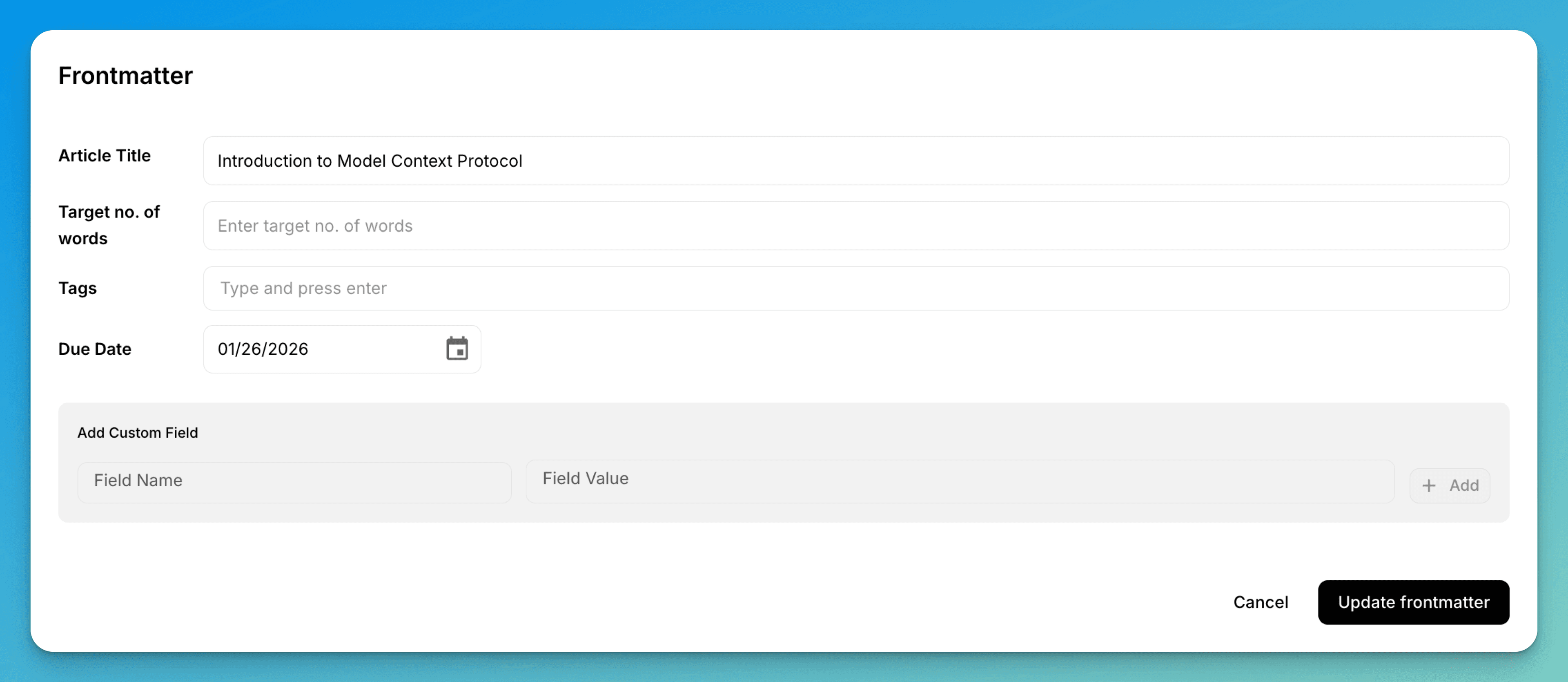
MD Editor provides a visual interface for editing frontmatter, making it easy to manage document metadata without manually writing YAML or TOML syntax.

Editing Frontmatter Visually

Instead of editing raw YAML syntax, you can use the visual frontmatter editor:

  1. Select the frontmatter block in your document
  2. A context menu appears with editing options
  3. Or access it via the three-dots menu in the toolbar
  4. Edit fields visually with proper input types (text, dates, tags, etc.)

Visual Frontmatter Editor

The visual editor provides:

  • Field type detection: Automatically recognizes strings, numbers, booleans, dates, and arrays
  • Validation: Ensures proper YAML/TOML syntax
  • Auto-completion: Suggests common frontmatter fields
  • Custom fields: Easy addition of custom metadata fields
  • Template support: Save and reuse frontmatter templates

This visual approach eliminates syntax errors and makes it easy to manage complex metadata structures without memorizing YAML or TOML syntax rules.