Links and Images
Add hyperlinks, images, and other media to your markdown documents.
Try adding links and images →Links
Basic Links
Create links using [text](url):
[Visit mdedit.ai](https://mdedit.ai)
[GitHub](https://github.com)
Visit mdedit.ai (opens in a new tab) GitHub (opens in a new tab)
Links with Titles
Add a title that appears on hover:
[mdedit.ai](https://mdedit.ai "The best markdown editor")mdedit.ai (opens in a new tab)
Reference-Style Links
Create reusable link references:
[Link 1][ref1]
[Link 2][ref2]

[ref1]: https://example.com "Example site"
[ref2]: https://another.com "Another site"
Link 1 (opens in a new tab) Link 2 (opens in a new tab)
Automatic Links
URLs are automatically converted to links:
https://mdedit.aihttps://mdedit.ai (opens in a new tab)
Email Links
Email addresses wrapped in angle brackets become clickable links:
<hello@mdedit.ai>This will render as a clickable email link.
Images
Basic Images
Add images using :
Images with Titles
Reference-Style Images
![Alt text][image-ref]

[image-ref]: https://placehold.co/640x360/png "Example image"
Image Sizing
Use HTML for more control over image size:
<img src="https://placehold.co/200x100/png" alt="Example image" width="200" height="100" />Videos
mdedit.ai supports HTML5 video embedding:
<video controls width="600">
  <source src="video.mp4" type="video/mp4">
  Your browser doesn't support video.
</video>
Common Video Attributes
Using images in mdedit.ai
If you’re using the mdedit.ai web app/desktop app, you can upload and manage images as document assets.
See also: Assets (images & files).
<video controls autoplay loop muted width="100%">
  <source src="demo.mp4" type="video/mp4">
</video>
GitHub Gists
Embed GitHub Gists by simply linking to them:
https://gist.github.com/username/gist-idmdedit.ai will automatically render the gist with syntax highlighting.
Linking to Headings
Link to headings in the same document using anchor links:
[Go to Links Section](#links)
[Go to Images Section](#images)
Go to Links Section Go to Images Section
Opening Links in New Tab
Use HTML to open links in a new tab:
<a href="https://mdedit.ai" target="_blank">Open in new tab</a>Combining Links and Images
Create clickable images:
[](link-url)Example:
[](https://mdedit.ai)Asset Management
mdedit.ai provides powerful asset management features:
- Local Assets: Reference images and videos stored with your document
- Private URLs: Automatic resolution of private asset URLs (S3, etc.)
- Asset Optimization: Automatic lazy loading and optimization
- Preview Support: See assets in both editor and preview modes
Using Local Assets

<video controls src="assets/my-video.mp4"></video>Assets are automatically managed and synced with your documents.
Visual Media Management in mdedit.ai
mdedit.ai provides a powerful visual interface for managing images and videos in your markdown documents.
Media Import Dialog
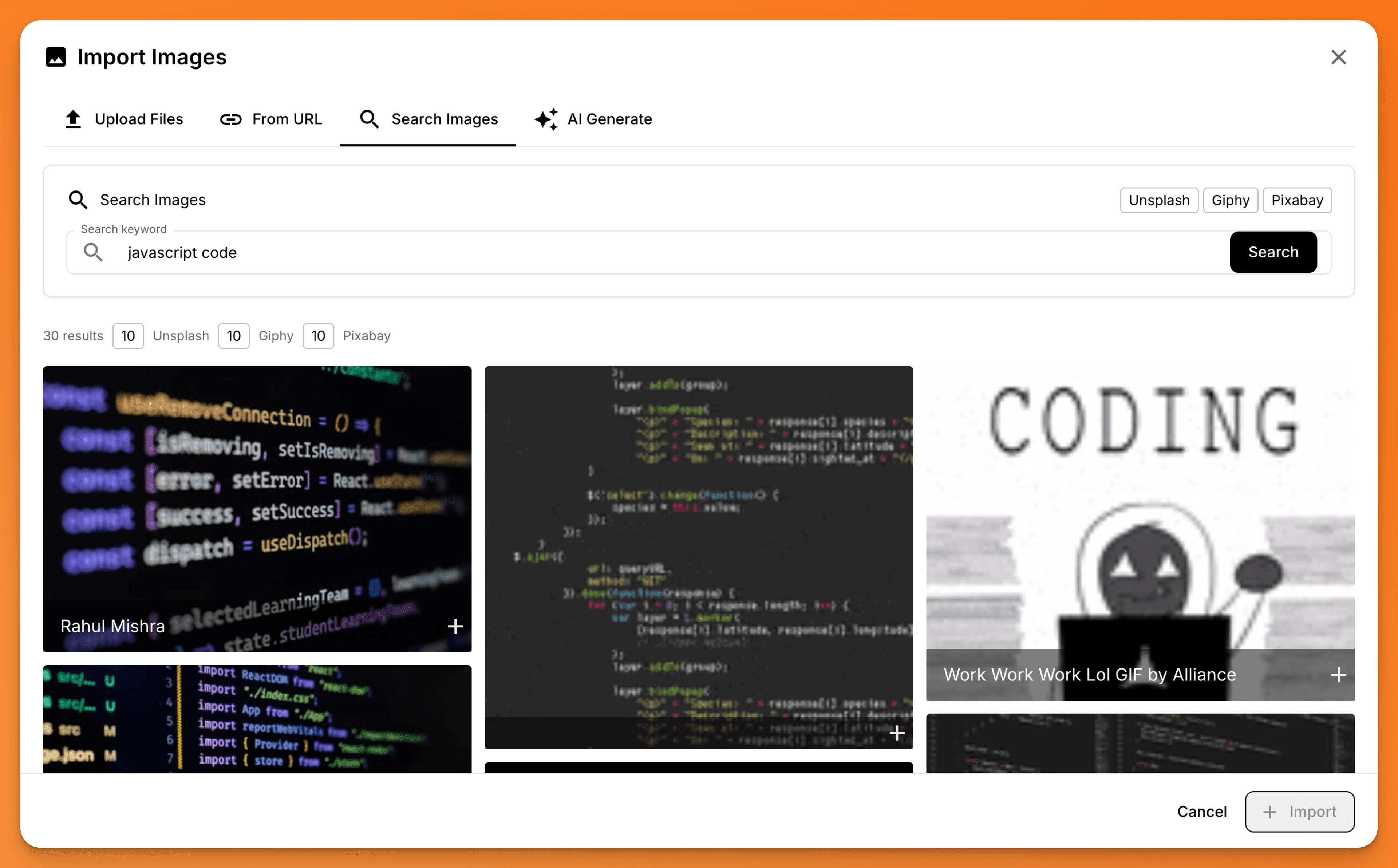
Instead of manually typing image syntax, you can use the Media Import dialog to:
- Import from local files: Drag and drop or browse for images and videos
- Import from URL: Paste a URL to embed external media
- Search stock media: Find free images from Giphy, Unsplash, or Pixabay
- Generate with AI: Create custom images using AI image generation
To access the Media Import dialog:
- Click on the image icon in the toolbar
- Or use the keyboard shortcut to insert media
- Choose your preferred import method
- The markdown syntax will be automatically inserted at your cursor position
This visual approach makes it easy to add rich media to your documents without memorizing syntax or managing file paths.