AI writing
mdedit.ai includes AI tools for drafting, rewriting, and chat-style assistance inside your documents.
Quickstart
- Open a document in the editor.
- Open the AI panel (or run an AI command from the UI).
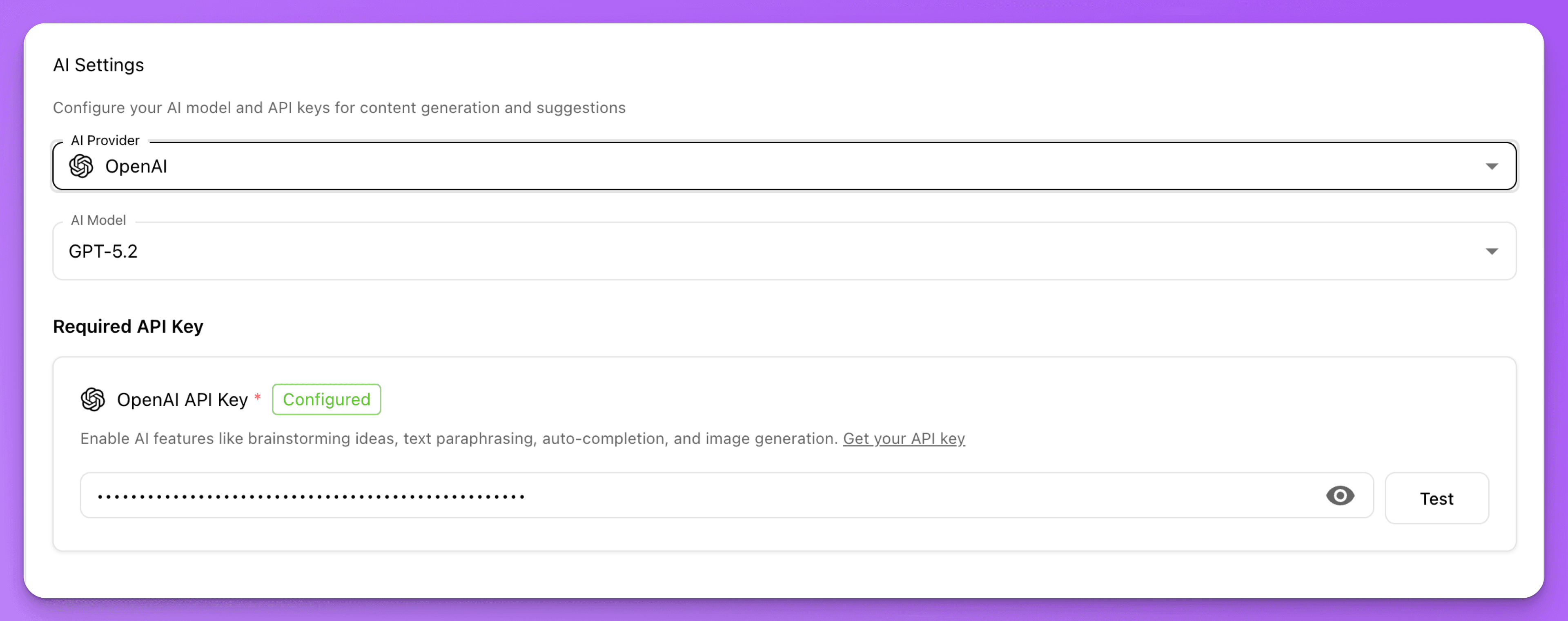
- Choose a model/provider in AI Settings.
API keys and plans
Some plans include AI usage. If your plan does not, mdedit.ai may ask you to provide your own provider API key (for example OpenAI or Anthropic) in AI Settings so it can run requests on your behalf.
Chat history
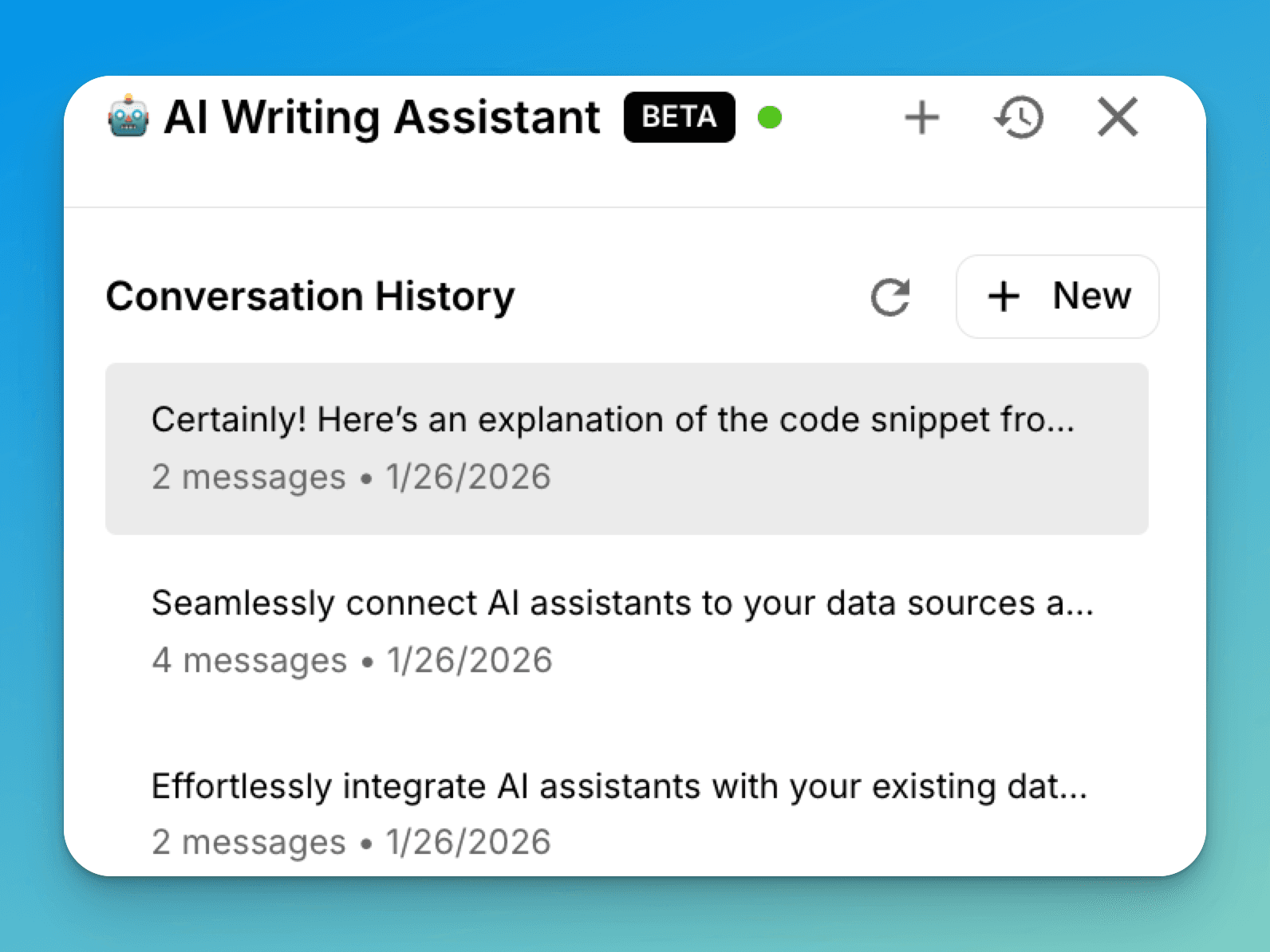
If you use the AI assistant in a document, mdedit.ai can keep conversation history tied to that document so you can revisit previous threads later.
What data is sent
AI features are opt-in. mdedit.ai only sends content when you explicitly run an AI action.
To generate an output, mdedit.ai may send:
- the prompt you typed
- any selected text (if you’re editing/reworking a selection)
- relevant document context needed to produce a coherent result
The exact provider used depends on the model you select in AI Settings.
Tips
- Be explicit about tone and audience (“Write this as a runbook section for SREs…”).
- For better results, select the exact paragraph/section you want changed.