Templates
Templates are pre-written, filled-in example documents that give you a strong starting point. They’re designed to be edited: delete what you don’t need, and replace what you do.
Why templates are useful
- Start faster with a proven structure (blog post, API doc, RFC, resume).
- Stay consistent across a team (shared headings and sections).
- Reduce “blank page” time—especially for long-form writing.
Use a template
- Click New.
- Select Document from Template.
- Pick a template category and choose a template.
- Edit the content directly.
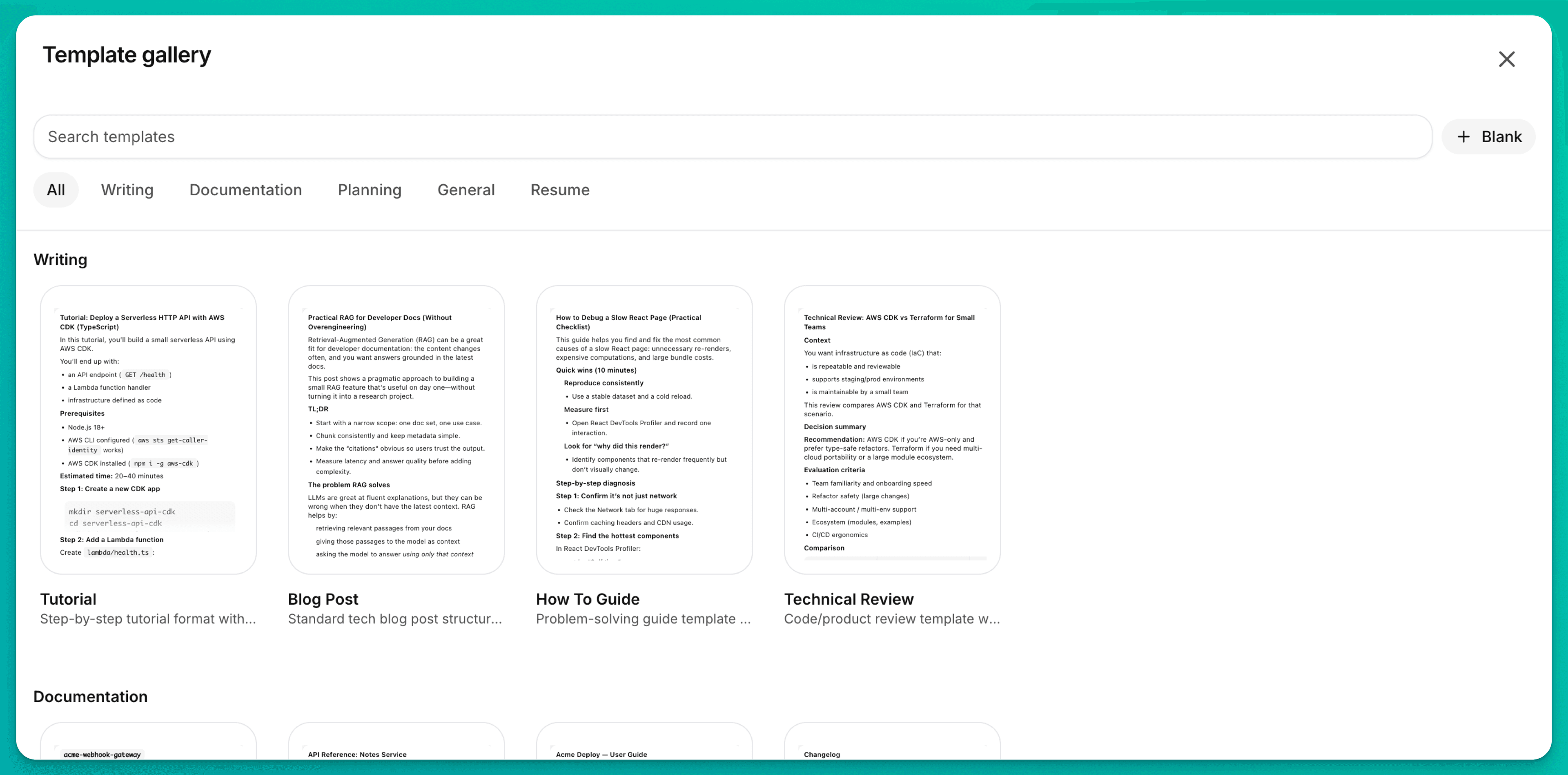
Note: templates are fetched from the server, so you need to be online to browse and use templates.
Built-in templates
These are built-in “system templates” that come with mdedit.ai.
Writing
- Blog Post — Narrative structure for a technical blog post (intro → sections → conclusion).
- Tutorial — Step-by-step instructions with prerequisites, commands, and troubleshooting.
- How-to Guide — A practical checklist-style guide for solving one problem.
- Technical Review — Compare options, call out tradeoffs, and make a recommendation.
Documentation
- API Documentation — Endpoints, auth, request/response examples, and error formats.
- User Guide — Getting started, core workflows, and troubleshooting.
- README — Project overview, install/run/test, and architecture notes.
- Changelog — Release notes in a Keep-a-Changelog format.
Planning
- Tech Design Doc — Problem → goals → architecture → rollout → risks.
- RFC — Proposal format for team discussion and decision-making.
- Spike Doc — Time-boxed research write-up with findings and recommendation.
- Project Planning — Milestones, owners, risks, and definition of done.
Resume
- Resume — A filled-in example resume rendered in “resume mode”.
General
- Markdown Playground (Default) — A kitchen-sink showcase of common Markdown features.
Save your own templates
You can create templates from your own documents.
- Open a document you want to reuse.
- Open the document menu (⋮) in the editor.
- Click Save as Template.
- Choose a name, slug, category, and description.
Note: saving templates requires being online.
Resume template (resume mode)
Resume mode is opt-in via front matter:
---
mdedit:
  renderProfile: resume
---
Customization (safe + minimal)
For small styling tweaks, use inline CSS in front matter. It’s applied to the resume preview only:
---
mdedit:
  renderProfile: resume
  styles:
    cssInline: |
      #resume-preview h2 { letter-spacing: 0.04em; text-transform: uppercase; }
  page:
    size: letter
    margin: 0.5in
---
You can also reference remote CSS files:
---
mdedit:
  renderProfile: resume
  styles:
    cssUrls:
      - https://example.com/resume.css
---
Remote CSS is best-effort:
- It may fail due to CORS, offline mode, or 404s.
- If your resume depends on a style, consider putting the critical parts in
cssInline.
Export guidance (v1)
Resumes are sensitive to styling. For consistent results:
- Prefer Styled HTML for a shareable, styled export.
- Use Print / Save as PDF for PDF output.