Create your first document
This walkthrough takes you from a new account to a result you can share. You do not need to configure a workspace or understand sync before you begin.
1. Create an account or sign in
Open app.mdedit.ai (opens in a new tab) and choose Sign up or Sign in. mdedit.ai creates a default workspace for your documents.
2. Create a document
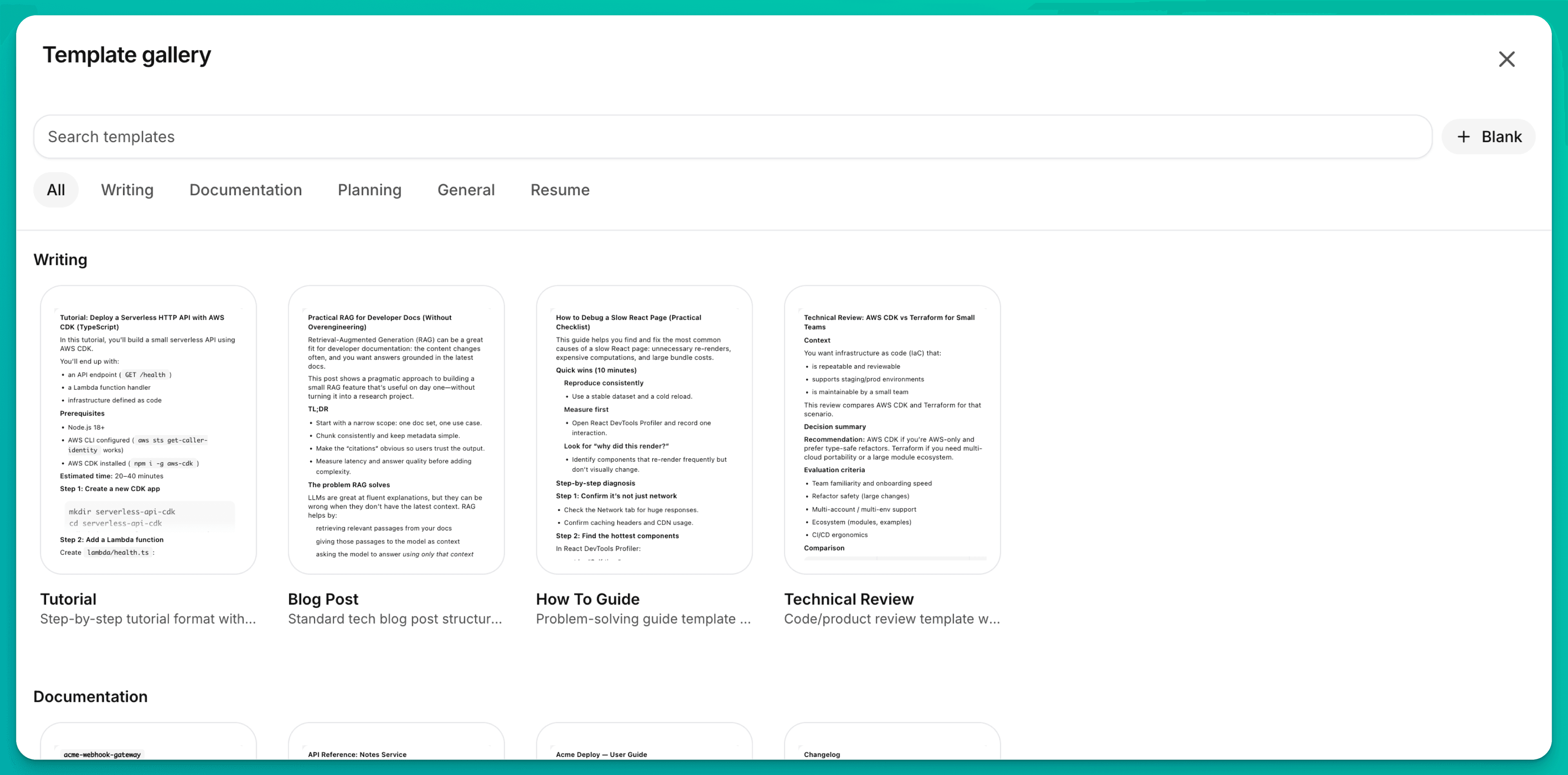
From the documents dashboard, choose New → Document from Scratch. To start with an outline, choose New → Document from Template instead.
Give the document a clear title. You can move it into a folder later.
3. Write with live preview
Type Markdown in the editor. Use Split to see the rendered result beside the source, and use the toolbar for links, images, tables, code, and formatting.
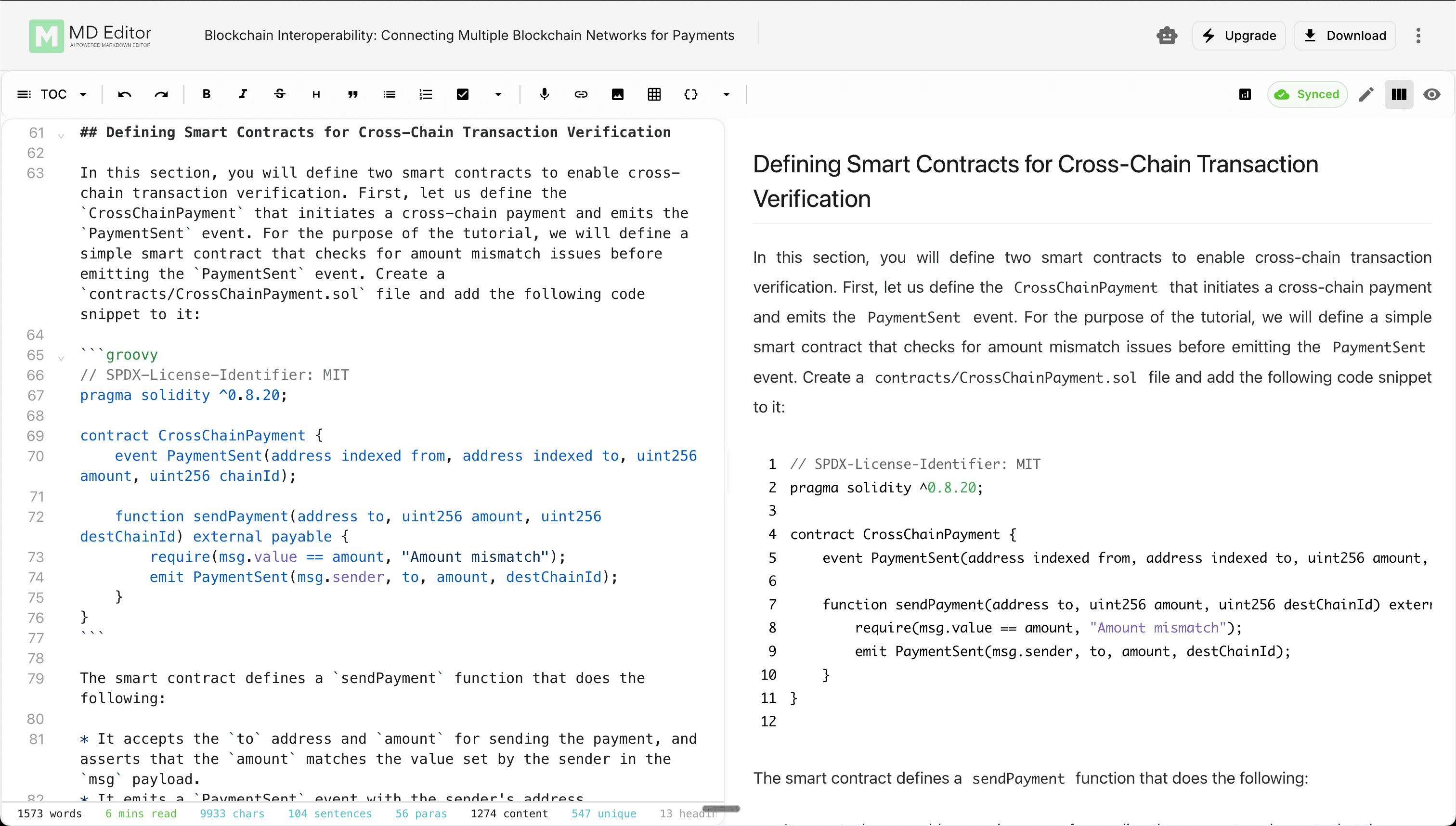
To try AI, select a sentence, open the assistant from the selection menu, and choose Improve. Review the proposed change before applying it. See AI writing for every action and assistant mode.
4. Check save and sync status
The status indicator reports what happened to your latest edit:
- Changes saved locally means the edit is safely stored in this browser and is still waiting to sync.
- Syncing means mdedit.ai is sending the latest local changes to the cloud.
- All changes synced means the cloud copy has caught up with the local document.
- Offline means you can keep writing; sync resumes after the connection returns.
- Local means Sync Articles is off, so the document stays in this browser.
- Sync Limit means your plan already has its allowed number of cloud-synced documents. Your local edits remain available; open the indicator to choose what to sync or upgrade.
- Conflict means the local and cloud copies diverged. Review the choices before replacing either copy.
For the full behavior, see Offline & sync and Plans & limits.
5. Export or share
Open Download for a Markdown, HTML, PDF, DOCX, or other supported file. Open Share to invite another mdedit.ai user or create a public hosted copy.
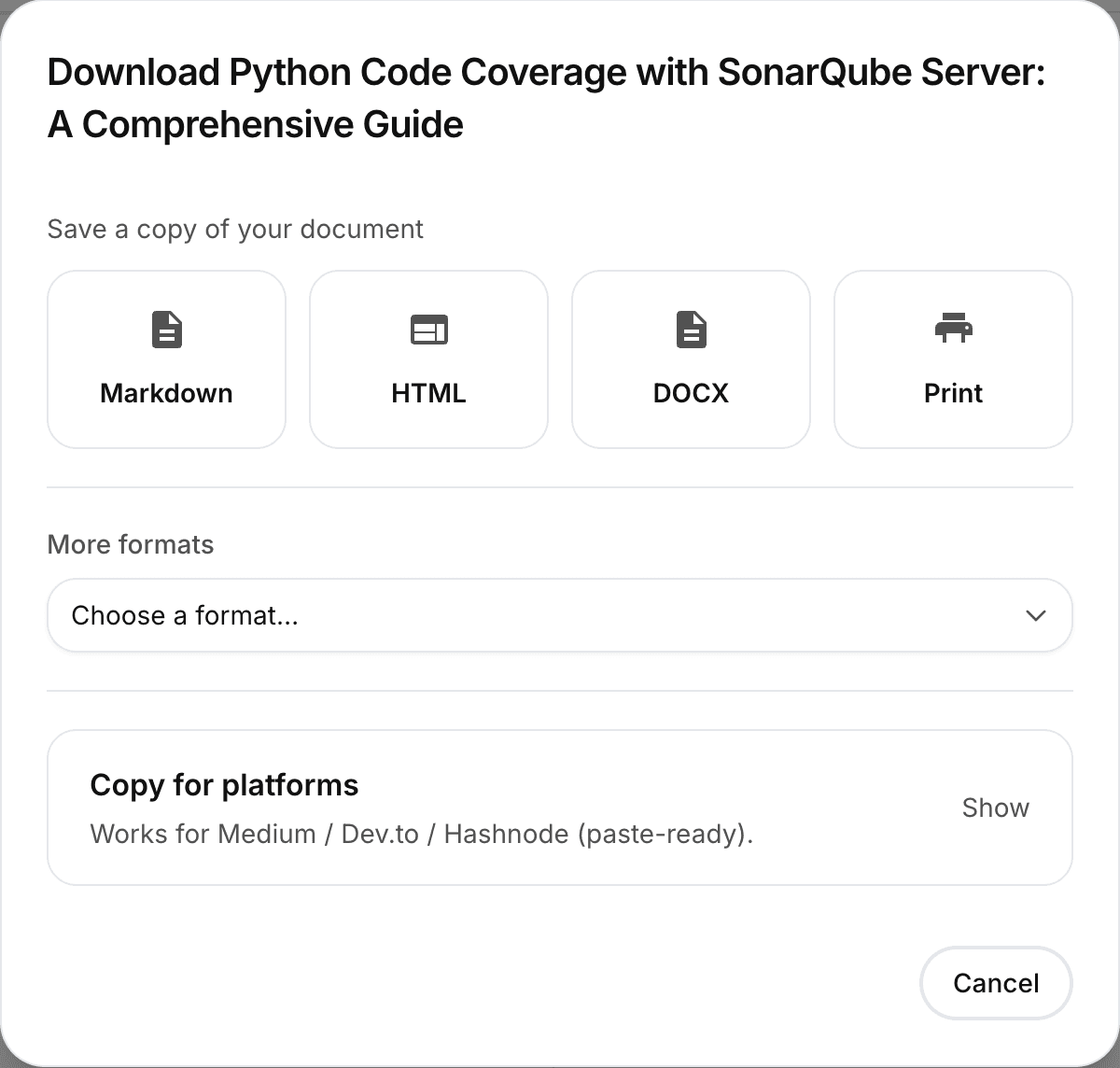
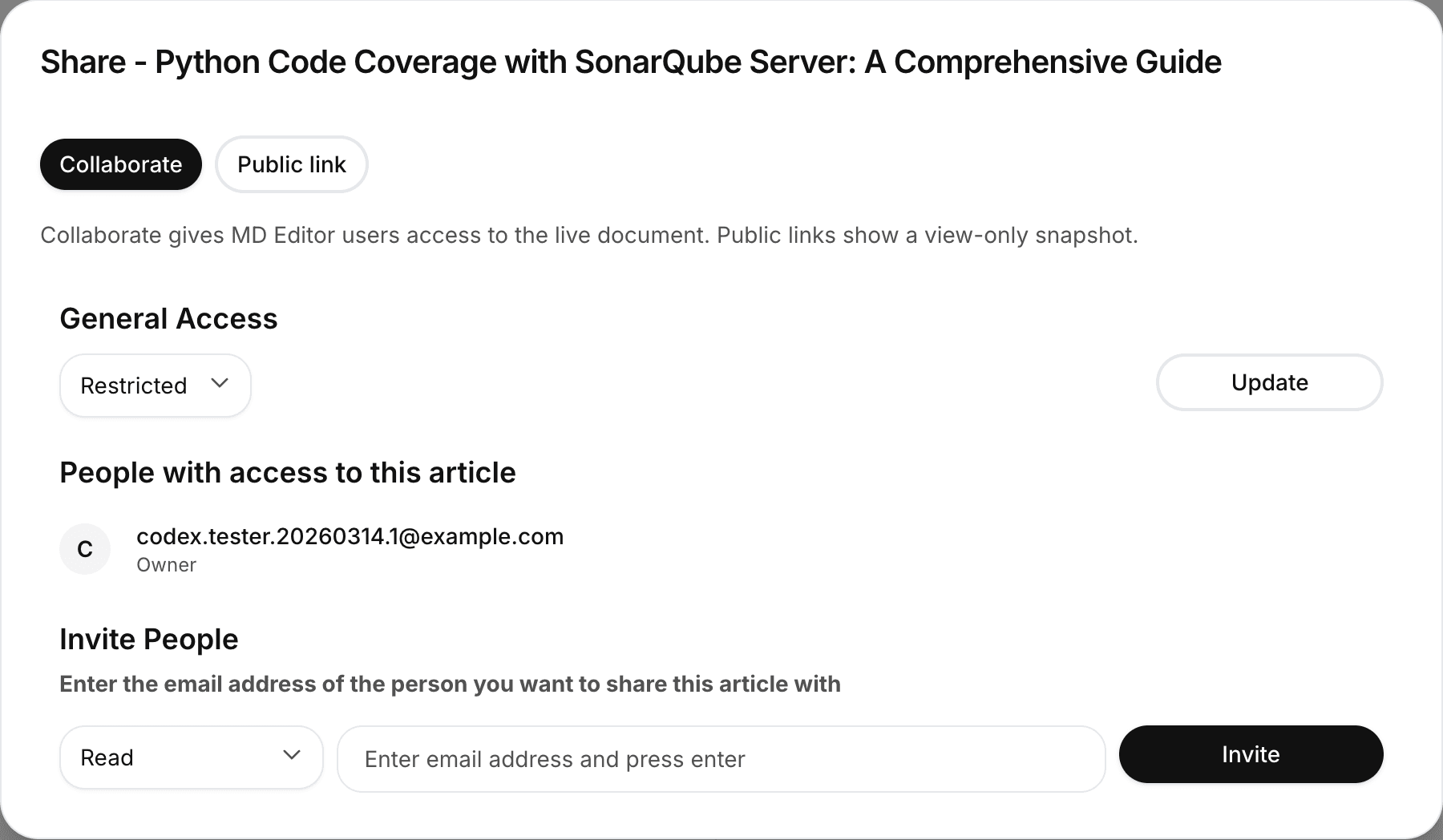
Choose the route that matches the recipient:
- Send a file: File exports
- Work together in the document: Live collaboration
- Publish a public or connected copy: Public links & publishing
You now have a synced document and a shareable result. Next, use folders, save a reusable template, or learn the keyboard shortcuts.